

If you run a WordPress website and care about search traffic, you need to understand your robots.txt file. Many website owners ignore it until something goes wrong. Pages stop appearing in search results, traffic drops, or Google Search Console shows a “Blocked by robots.txt” warning. At that point, the issue feels technical and confusing.
This guide is written for users actively searching for how to edit robots.txt in WordPress, where robots.txt is located, and how to modify it safely without harming SEO. You will learn what the file does, why it matters, four practical ways to edit it, what you should never block, and how to test your changes properly.
Table of Contents
What Is a robots.txt File?
A robots.txt file is a small text file that gives instructions to search engine bots about which parts of your website they are allowed to crawl. It does not directly control rankings, but it controls access. Search engines read this file before they begin crawling your website. When you edit robots.txt correctly, search engines focus on valuable content. If you add the wrong rules while trying to edit robots.txt, they may ignore important pages.
Why Search Engines Use It
Search engines like Google use automated bots to crawl websites. Before crawling, these bots check the robots.txt file located at:
https://yourdomain.com/robots.txtThe file may include rules such as:
User-agent: *
Disallow: /wp-admin/
Allow: /wp-admin/admin-ajax.php
Sitemap: https://yourdomain.com/sitemap.xml
This tells search engines not to crawl the admin section but allows a specific file required for functionality. It also provides a sitemap link to help search engines find all important pages quickly.
Where It Is Located
The robots.txt file is stored in your website’s root directory. In most WordPress installations, that directory is called public_html. If you visit yourdomain.com/robots.txt and see content, the file already exists. If nothing appears, WordPress may be generating a virtual version automatically.
Why Is the Robots.txt File Important?
The robots.txt file plays a critical role in technical SEO. It helps search engines use their crawl resources efficiently. It prevents bots from wasting time on irrelevant sections like admin pages or internal filters. It protects private areas from unnecessary crawling. It also helps search engines locate your sitemap quickly.
However, it must be handled carefully. A small mistake while trying to edit robots.txt can block your entire website from search results. At JustHyre, we often audit WordPress websites where traffic dropped because robots.txt was misconfigured during development or after a plugin change.
Understanding how to edit it correctly protects your visibility and search performance.
4 ways to edit robots.text in WordPress
There are four main ways to edit robots.txt in WordPress. The right method depends on your comfort level and website setup.
Method 1: Use an SEO Plugin (Easiest Method)
This is the simplest method for most website owners. Popular SEO plugins such as Yoast SEO and Rank Math allow you to edit robots.txt directly inside the WordPress dashboard.
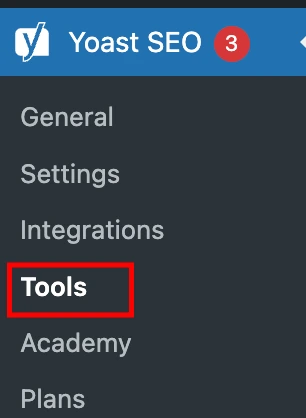
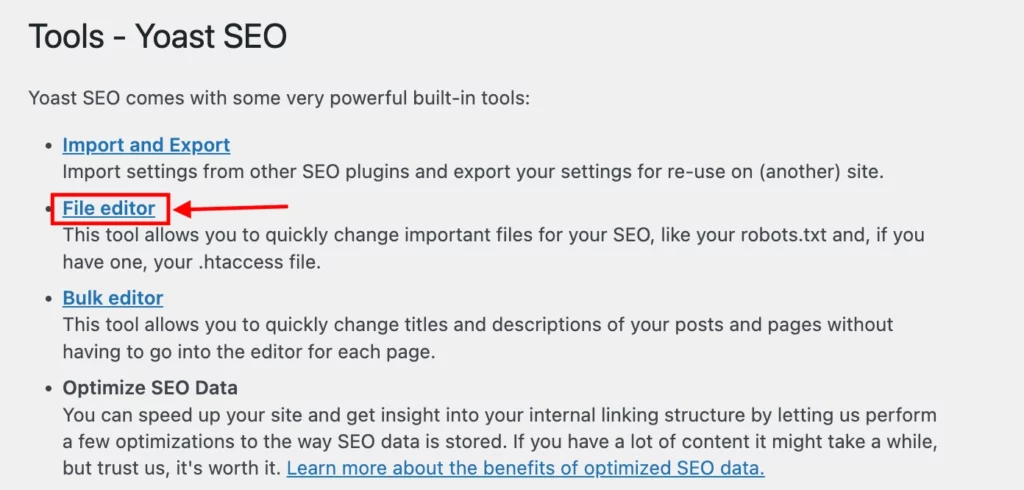
To edit using an SEO plugin:
- Install and activate the plugin.
- Go to its settings panel.
- Find the file editor or robots.txt section.
- Modify the content.
- Save changes.
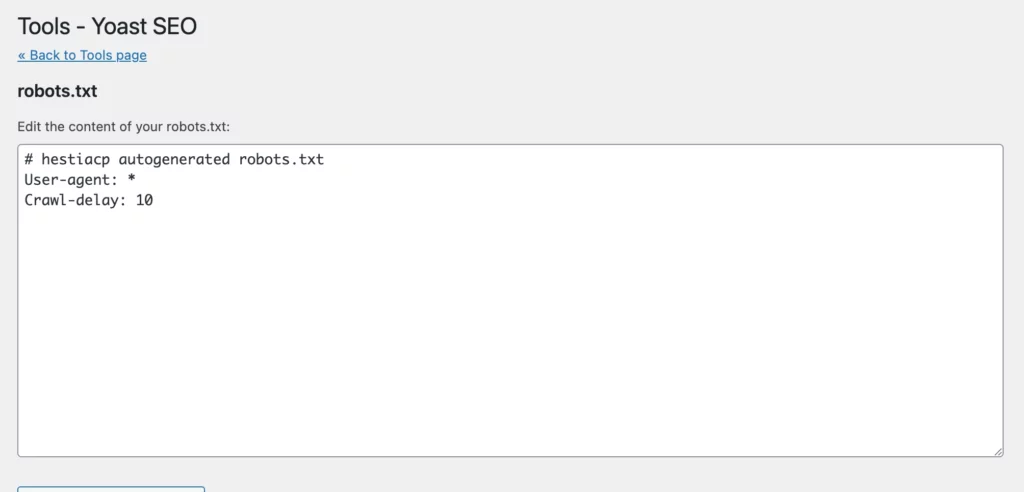
This method does not require hosting access or server knowledge. It is ideal for bloggers, small business websites, and content-driven sites.
If your website is larger or includes complex filtering systems such as WooCommerce stores, a more advanced configuration may be required.
Method 2: Use a Dedicated robots.txt Plugin
Some plugins are built specifically to manage robots.txt files, for instance, Virtual Robots.txt. These tools allow you to create and edit a custom robots.txt file without touching hosting files.
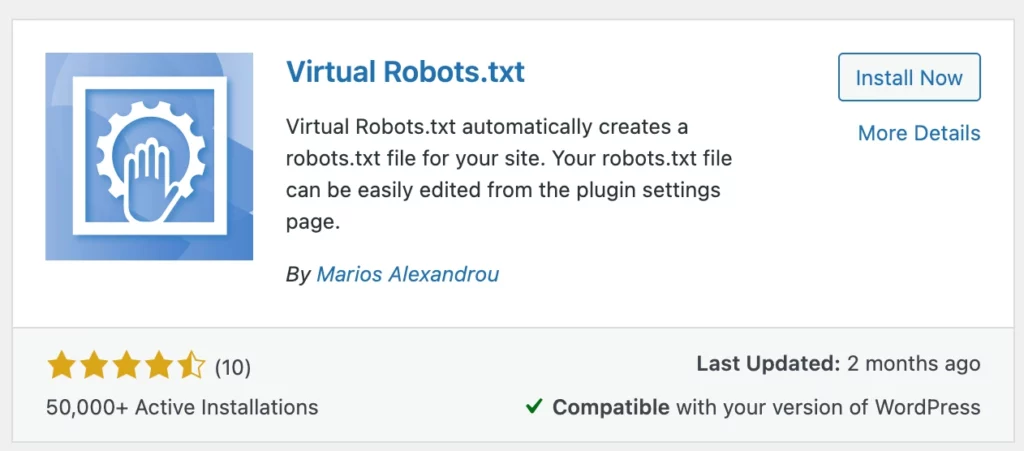
This method is useful when:
- Your SEO plugin does not include file editing features.
- You want a focused solution.
- You prefer a simple interface.
However, avoid installing unnecessary plugins. Too many plugins can slow down your website or create conflicts. Always test your website after making changes.
Method 3: Access robots.txt via cPanel in Your Hosting
If you want full control, editing via hosting is the standard method. This approach gives direct access to your website files and allows you to manage the robots.txt file at the server level.
Steps to Edit robots.txt via cPanel (Traditional Hosting)
- Log in to your hosting account.
- Open cPanel.
- Click on File Manager.
- Navigate to public_html.
- Locate robots.txt.
- Edit the file and save changes.
If the file does not exist, create a new file named robots.txt inside the root directory. This method is commonly used for WordPress websites hosted on providers that offer cPanel access. It is recommended for business websites, e-commerce stores, and large content platforms that require structured crawl rules. It provides flexibility but requires caution, since incorrect edits can affect search visibility.
Editing robots.txt on Wix (If Your Hosting Is via Wix)
If your website is hosted on Wix, you do not access files through cPanel. Wix provides a built-in interface for editing robots.txt. To edit robots.txt on Wix:
- Go to your SEO Dashboard.
- Select Go to Robots.txt Editor under Tools and Settings.
- Click View File.
- Add your directives under the section labeled This is your current file.
- Save your changes.
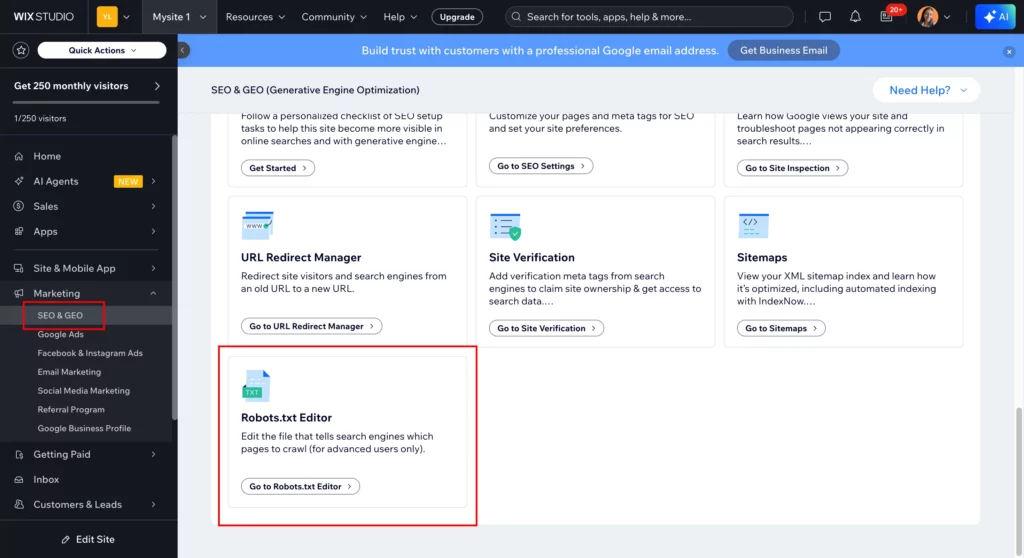
Wix manages hosting internally, so you cannot access the root directory manually. All edits must be done through the SEO dashboard.
Whether your website is hosted on WordPress with cPanel or managed through platforms like Wix, the key is ensuring that crawl rules are accurate and aligned with your SEO goals. At JustHyre, our engineers frequently handle hosting-level robots.txt optimization for businesses that need precise crawl control and strong technical SEO foundations.
Method 4: Use FTP to Access robots.txt
FTP allows you to connect to your server using software like FileZilla. This method is commonly used by developers. Steps to edit via FTP:
- Install an FTP client.
- Enter FTP credentials provided by your hosting provider.
- Connect to your server.
- Navigate to the root directory.
- Download robots.txt.
- Edit the file locally.
- Upload it back to the server.
FTP is helpful when managing multiple environments or working on advanced website setups. However, it requires familiarity with server files and credentials.
How to Edit robots.txt Safely
Editing robots.txt safely requires clarity and caution. Always back up the existing file before making changes. Avoid copying random templates from forums without understanding the rules. Keep the file clean and minimal.
A safe example looks like this:
User-agent: *
Disallow: /wp-admin/
Allow: /wp-admin/admin-ajax.php
Sitemap: https://yourdomain.com/sitemap.xml
Only block sections that truly do not need crawling. Overblocking can harm SEO performance.
What Not to Block in robots.txt
Incorrect blocking is one of the most common SEO mistakes.
CSS and JavaScript Files
Never block the wp-content folder entirely. Google needs access to CSS and JavaScript files to properly render your website. Blocking these resources can affect how Google interprets layout and structure.
Important Landing Pages
Do not block service pages, product pages, category pages, or blog posts. Avoid using:
Disallow: /This blocks the entire site from search engines. This mistake often happens during staging and is forgotten during launch.
Your Sitemap
Always include your sitemap URL at the end of the file:
Sitemap: https://yourdomain.com/sitemap.xmlThis helps search engines crawl your website efficiently. For businesses investing in SEO campaigns, correct sitemap placement ensures faster content discovery.
How to Test robots.txt After Editing
Testing ensures your changes work as intended.
Using Google Search Console
Open Google Search Console and use the URL Inspection tool. Check whether important pages are crawlable. If you see a robots.txt block warning, review the file immediately.
Checking Crawl Errors
Inside Search Console, review the Pages section and Crawl Stats report. Look for blocked URLs or indexing issues. Monitor changes over several days, as search engines take time to process updates.
Common Robots.txt Mistakes to Avoid
Blocking the Entire Site by Accident
Adding the line:
Disallow: /If used under:
User-agent: * Your entire website becomes invisible to search engines. This often happens during development and gets forgotten after launch.
Blocking Important Folders
Avoid blocking wp-content, blog directories, or category structures without understanding SEO implications. Blocking critical folders can remove pages from search results.
Forgetting to Update Sitemap
If you change your sitemap URL and do not update robots.txt, search engines may miss new content. Always confirm the sitemap path is accurate.
How JustHyre Can Help
At JustHyre, our Professional WordPress engineers specialize in technical SEO configuration, crawl optimization, and WordPress performance management. We help businesses audit their robots.txt setup, fix crawl blocks, configure sitemaps properly, and ensure search engines can access high-value content.
Instead of experimenting with critical technical files, book a call with a WordPress engineer at JustHyre and get a clear assessment of your website’s crawl health. A properly configured robots.txt file protects your visibility and supports long-term growth.
Final Thoughts
Editing the robots.txt file in WordPress is not complicated, but it carries significant responsibility. A small change can either improve crawl efficiency or unintentionally block valuable pages from search engines. That is why it is important to understand what each directive does before making edits.
For most websites, keeping the file simple and focused is the best approach. Block only what truly needs to be restricted, always include your sitemap, and review the file whenever you make structural changes to your website. Regular checks through Google Search Console will help ensure everything remains accessible and properly indexed. When handled carefully, the robots.txt file becomes a powerful tool that supports your SEO strategy instead of working against it.